> ## Content Index
> Fetch the complete content index at: https://airabbit.blog/llms.txt
> Use this file to discover other available public pages before exploring further.
# The Joint Power of Obsidian and Readwise
- URL: https://airabbit.blog/how-to-reatin-the-konweldge-form-notes-with-obsidian-and-readise-2/
- Published: 2024-11-22T18:41:28.000Z
- Updated: 2025-03-21T15:45:36.000Z
- Description: Boost your productivity by integrating Readwise with Obsidian! Capture highlights from PDFs and websites effortlessly, syncing them directly to your Obsidian vault. This synergy creates a centralized hub for all your notes, enhancing organization and accessibility. Get started now and transform h...
- Author: AiRabbit
- Tags: Knowledge Management, Productivity, Tutorials

If you're anything like me, **Obsidian** is your go-to for organising all your notes and ideas (I love LogSeq too, but I chose Obsidian this time).
It's powerful, flexible and keeps **everything in one place.** But let's face it - sometimes you come across valuable information in different sources, like PDFs, websites or articles, and you don't want to go through the **hassle of copying** and pasting entire files or web pages into Obsidian, or having them in a completely separate place like your bookmark in your browser. That's where [Readwise](https://readwise.io/airabbitread/?ref=airabbit.blog) comes in.
With Readwise, capturing information is as easy as clicking a button, whether you're reading a PDF, surfing the web or diving into an ebook.
And thanks to the integration with Obsidian, these snippets are automatically synced to your Obsidian vault.
**The goal**
is to have a single, unified place (Obsidian) where you can access **any piece of information** without juggling browser bookmarks, separate files or scattered notes.
> I have talked a lot about combining different tools to avoid jumping from one tool to another to capture or search for information.
>
> For example here:
> \-
> And here (LogSeq approach)
> \-
In this post I will show you how we can use Readwise to integrate a whole range of non-note-taking tools such as browsers, PDF files, etc. into Obsidian.
If you are unfamiliar with these tools, here is a brief introduction to what they do in a nutshell:
> **Obsidian** is a powerhouse for note-taking and knowledge management. It uses **markdown** to store your notes locally, giving you full control over your data. What makes Obsidian stand out is its ability to **link notes together**, creating a web of interconnected ideas. Its robust **tagging and search capabilities** make finding information a breeze, whether you’re a writer, researcher, or just someone who loves organizing information.
With Obsidian, you can build a comprehensive knowledge base that grows with you, adapting to your needs and workflows.
> On the other hand, **Readwise** is designed to make capturing snippets from any digital content super easy. Whether you're reading a book, surfing the web or flicking through a PDF, Readwise lets you **highlight text and save those highlights with just one click**. It gathers all your highlights in one place and can send them back to you via **daily emails** or, with the right integration, directly **to your Obsidian vault.**
> This means you never lose track of valuable information and everything is neatly stored in one central location.
### Getting Started: Setting Up Readwise with Your Browser
First things first, let’s get Readwise up and running in your browser so you can start capturing those golden nuggets of information:
1. **Sign Up for Readwise:** If you haven’t already, head over to [Readwise](https://readwise.io/?ref=airabbit.blog) and create an account.
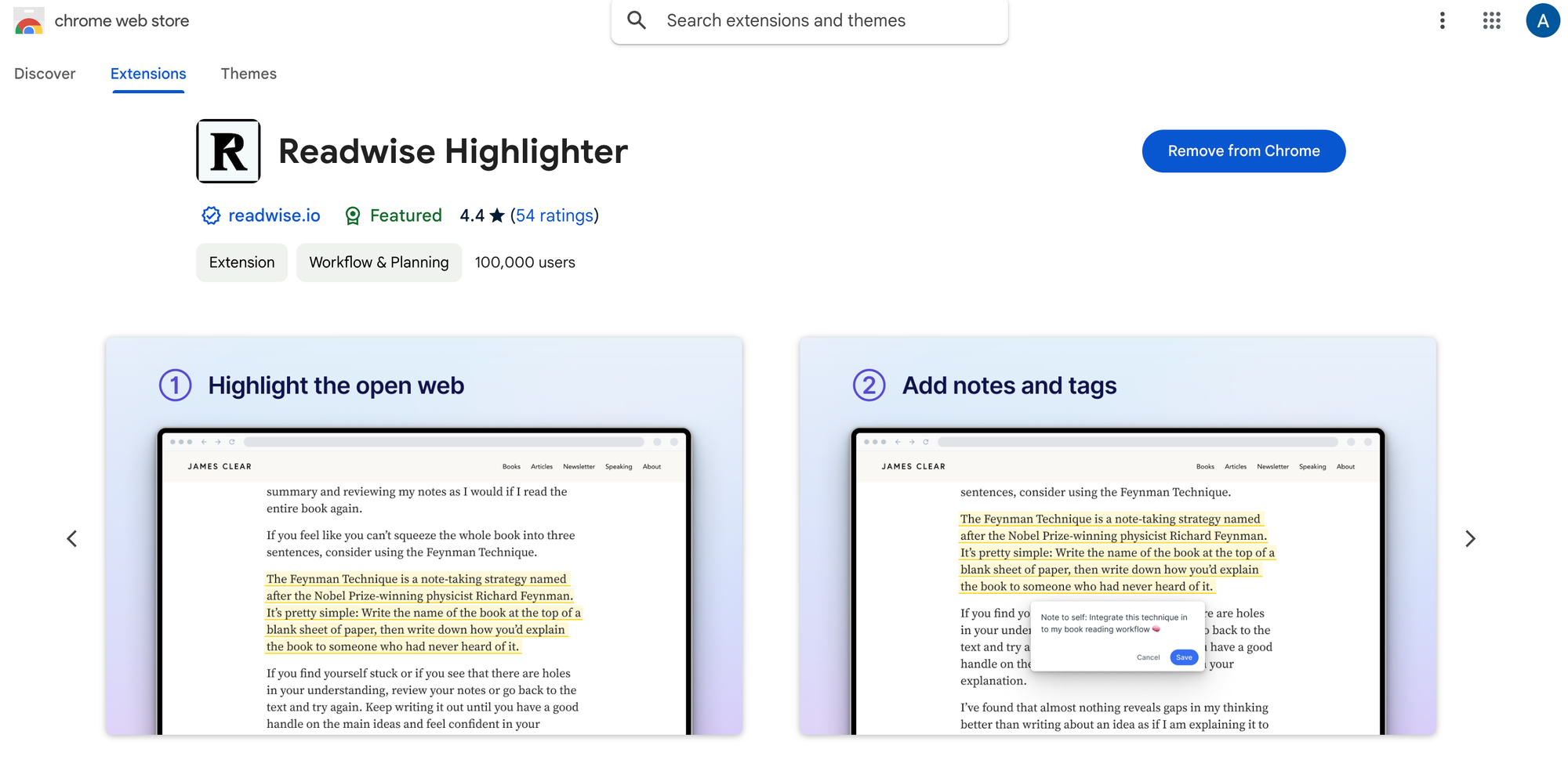
2. **Install the Browser Extension:** Install the Readwise extension from the browser’s extension store as shown below.
3. **Log In:** Open the Readwise browser extension and sign in with your Readwise account credentials.
### Capturing Snippets
With the Readwise extension installed, saving content is straightforward:
- **Browse and Highlight:** As you navigate through web pages, PDFs, or ebooks, simply highlight the text or select images that catch your eye.
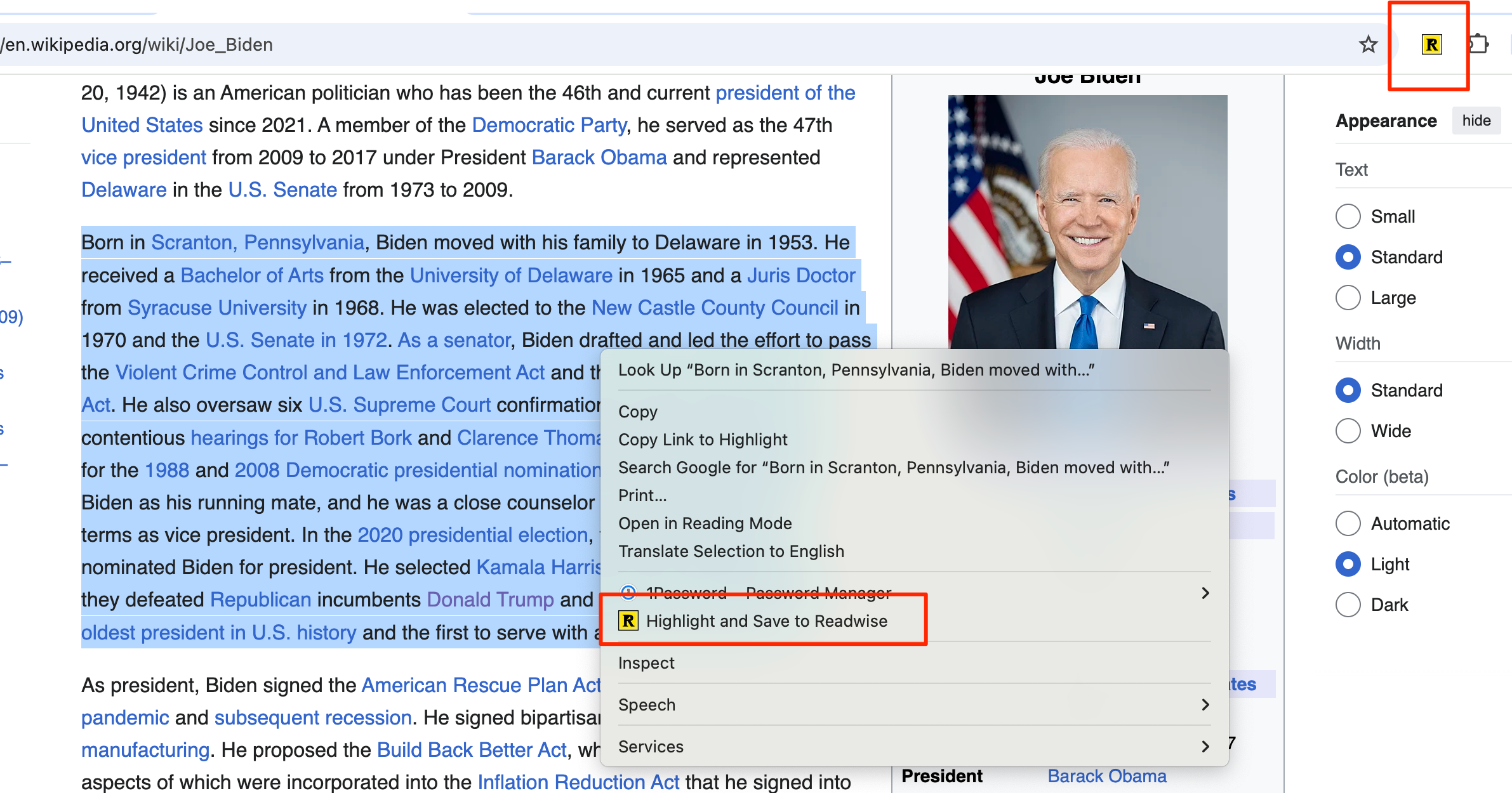
- **Save with a Click:** Click the Readwise extension icon in your browser toolbar to save the highlighted content directly to your Readwise account.
### Syncing Readwise with Obsidian
Now that you’re capturing snippets effortlessly, let’s integrate Readwise with Obsidian to ensure everything syncs smoothly:
- **Open Obsidian:** Launch Obsidian and open your existing vault or create a new one where you manage your notes.
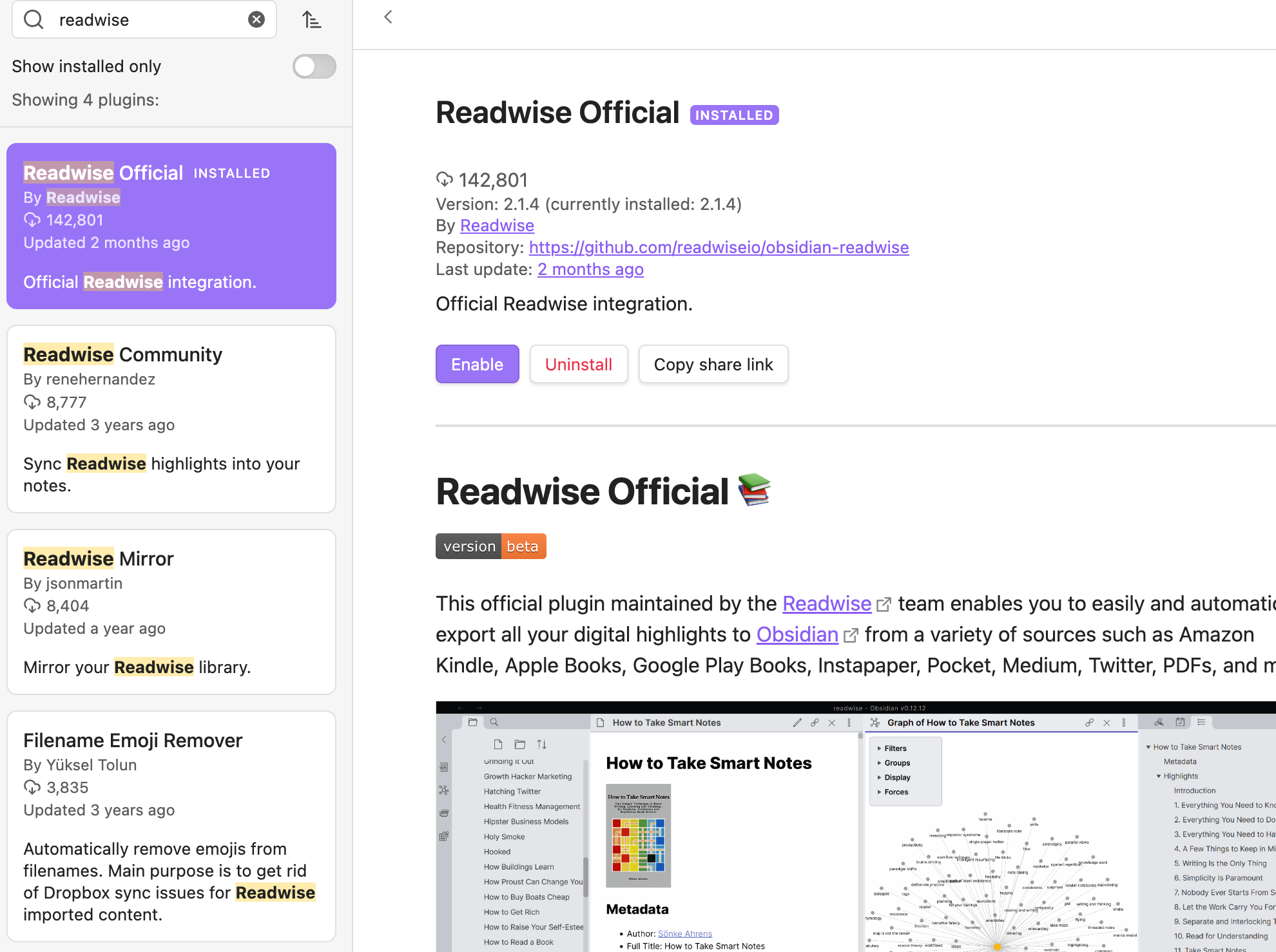
- **Add the Readwise Plugin:**
- Go to **Settings > Community Plugins**.
- Click on **Browse** and search for **"Readwise Official"**.
- Install and enable the plugin.
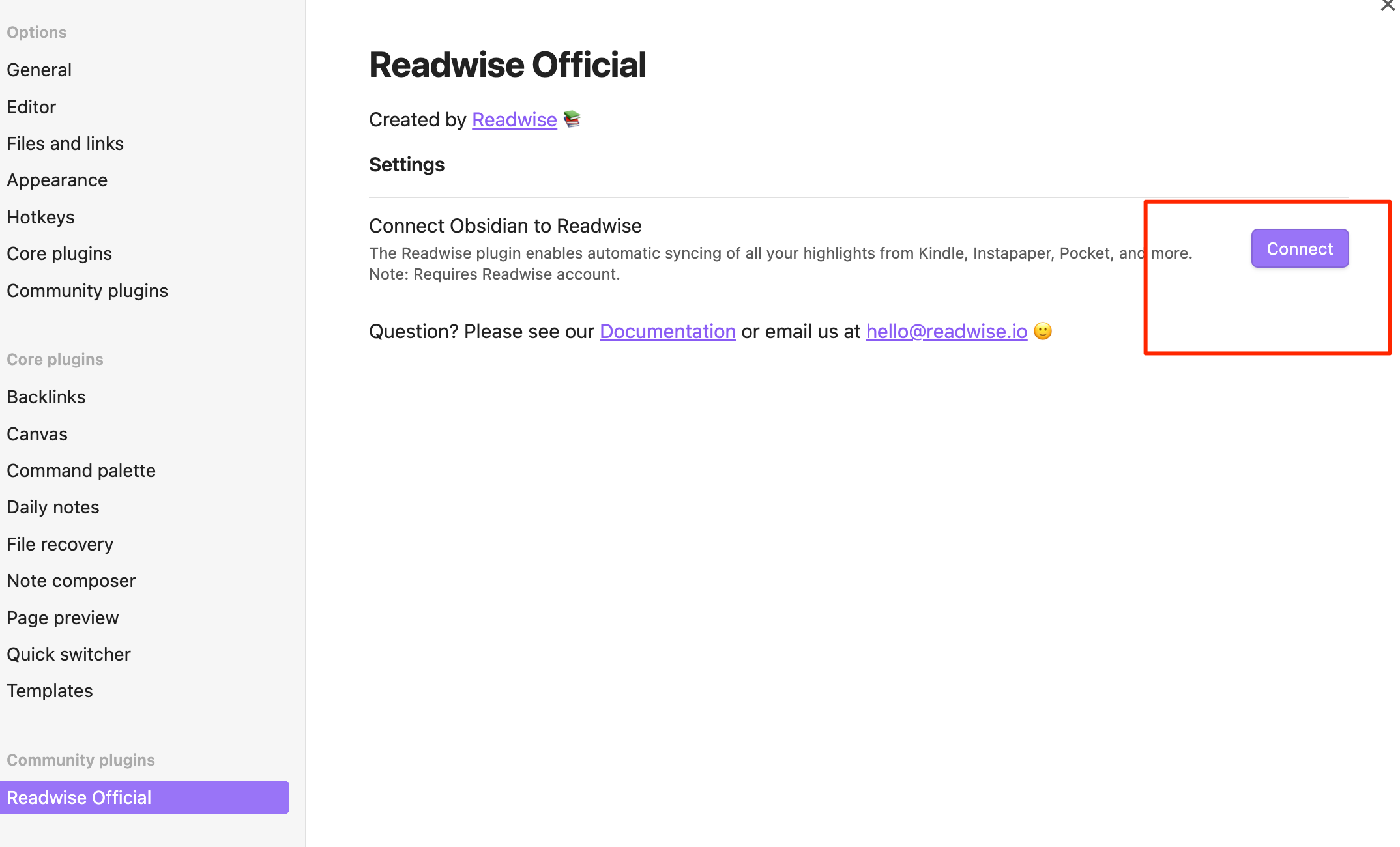
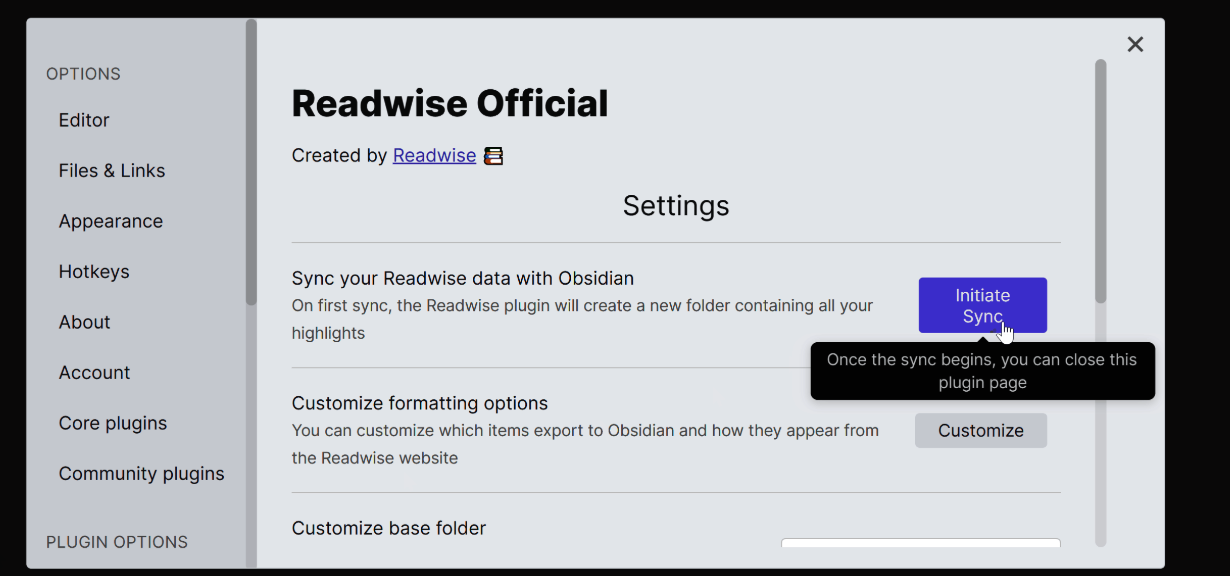
- **Configure It:**
- Navigate to the Readwise plugin settings within Obsidian.
- Connect it
- Set how often you want the sync to happen.
[https://readwise.io/export/obsidian/preferences](https://readwise.io/export/obsidian/preferences?ref=airabbit.blog)
###
Now it's time to customize how Readwise and Obsidian work together to fit your style:
- **Create a Special Folder:** Maybe something like `Readwise Imports` to keep all your highlights in one place.
- **Tweak the Formatting:** Adjust how your notes look when they’re imported to keep things consistent.
- **Set Your Sync Rhythm:** Whether daily or weekly, choose a sync frequency that matches your workflow.
Here is my typical workflow.
1. **Discover and Browse:** You’re reading an awesome article online or going through a PDF.
2. **Highlight and Save:** Spot something valuable? Highlight it and save it with a click using the Readwise extension.
3. **Automatic Sync:** Readwise takes care of syncing these highlights to your Obsidian vault based on your settings.
4. **Organize and Connect:** Open Obsidian to find your snippets organized. From here, you can link them to existing notes, add tags, or expand on the ideas, building a rich and interconnected knowledge base.
### Usage Tips
To truly leverage this integration, consider these advanced tips:
- **Daily Reviews:** Use Readwise’s daily review feature to resurface important highlights within Obsidian, helping reinforce your learning.
- **Consistent Tagging:** Implement a unified tagging system across Readwise and Obsidian to make finding and organizing content effortless.
- **Powerful Linking:** Utilize Obsidian’s linking capabilities to connect ideas from various sources, fostering deeper insights and understanding.
- **Stay Consistent with Tags:** A unified tagging strategy across both platforms ensures everything is easy to find.
- **Blend Daily Notes with Reviews:** Combine Obsidian’s daily notes feature with Readwise’s daily reviews to create a comprehensive daily journal of your learning.
### Wrapping It Up
Integrating Readwise with Obsidian transforms your knowledge management system into a powerhouse of organisation and accessibility.
You leverage Readwise's effortless highlighting and saving capabilities with Obsidian's robust note-taking environment, creating a seamless workflow that enhances your learning and productivity.